CIC eLounge help for external asset managers
Do you have any questions about CIC eLounge for external asset managers? As a user or super user of eLounge, comprehensive support is available to you. We have compiled the most important questions for you below.

"eLounge user management" for external asset managers
As a super user with administration rights, you will find it quick and easy to create new users, change the authorisations of existing users and delete users under "Settings > User management".
It only takes a few seconds to create a new user. The next step is to allocate the relevant authorisations. Once you have created a new user, they will be sent the login details by post immediately.
The following FAQs show how quick and easy it is to create new eLounge users and assign them the relevant access rights.
FAQs about user management
-
How do I create a new user in CIC eLounge?
Requirement: you must be registered as a super user with administration rights in CIC eLounge.
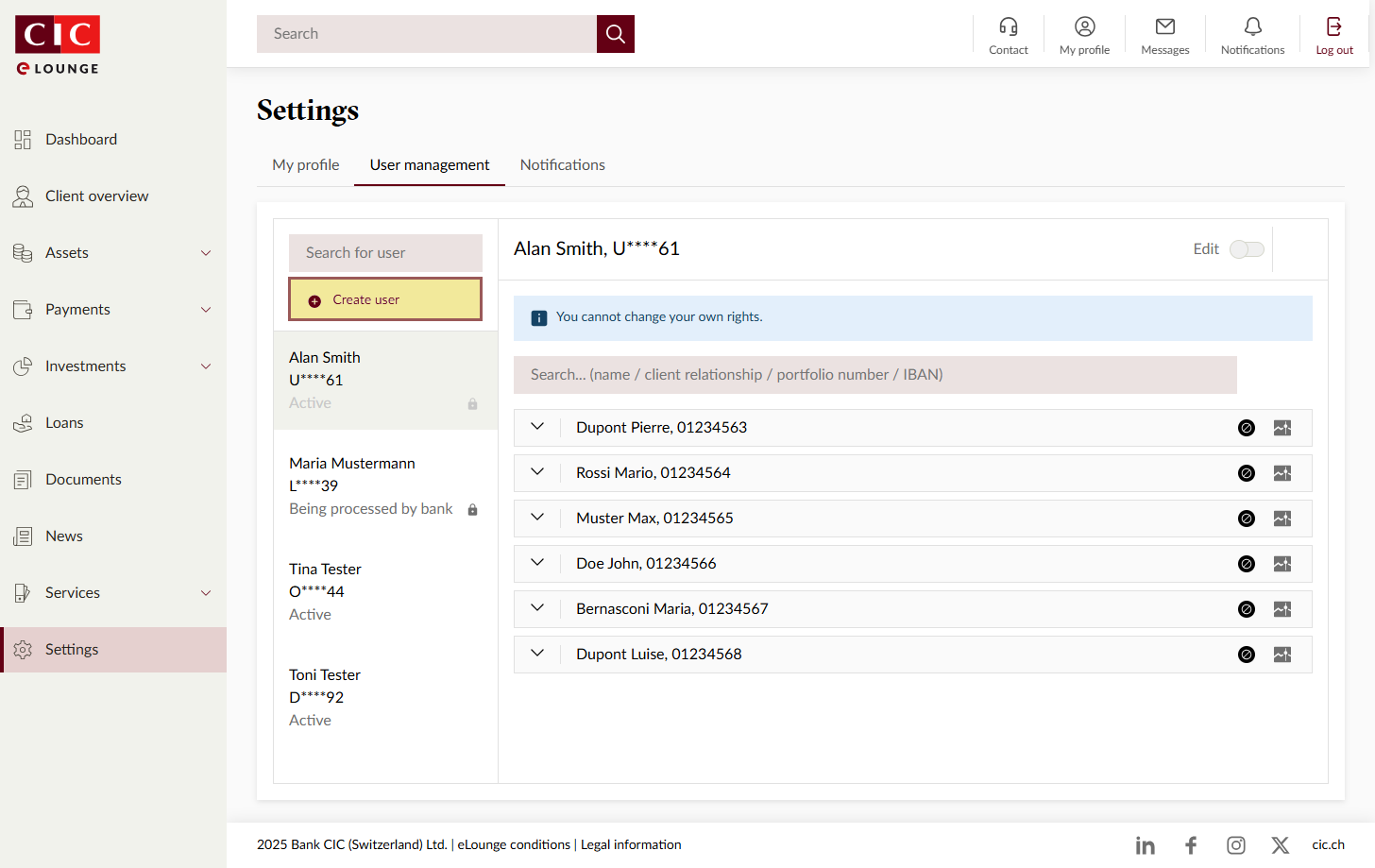
- Go to "Settings > User management" in CIC eLounge and click on "Create user".
- Enter the new user's details in the input screen and upload a copy of their official identification document. Confirm your entries by clicking on "Create user".
- Now select at least one client relationship the new user should have access to and click on "Continue". Multiple client relationships can be selected at the same time.
- The next step is to determine the desired access rights for the new user and click on "Allocate rights".
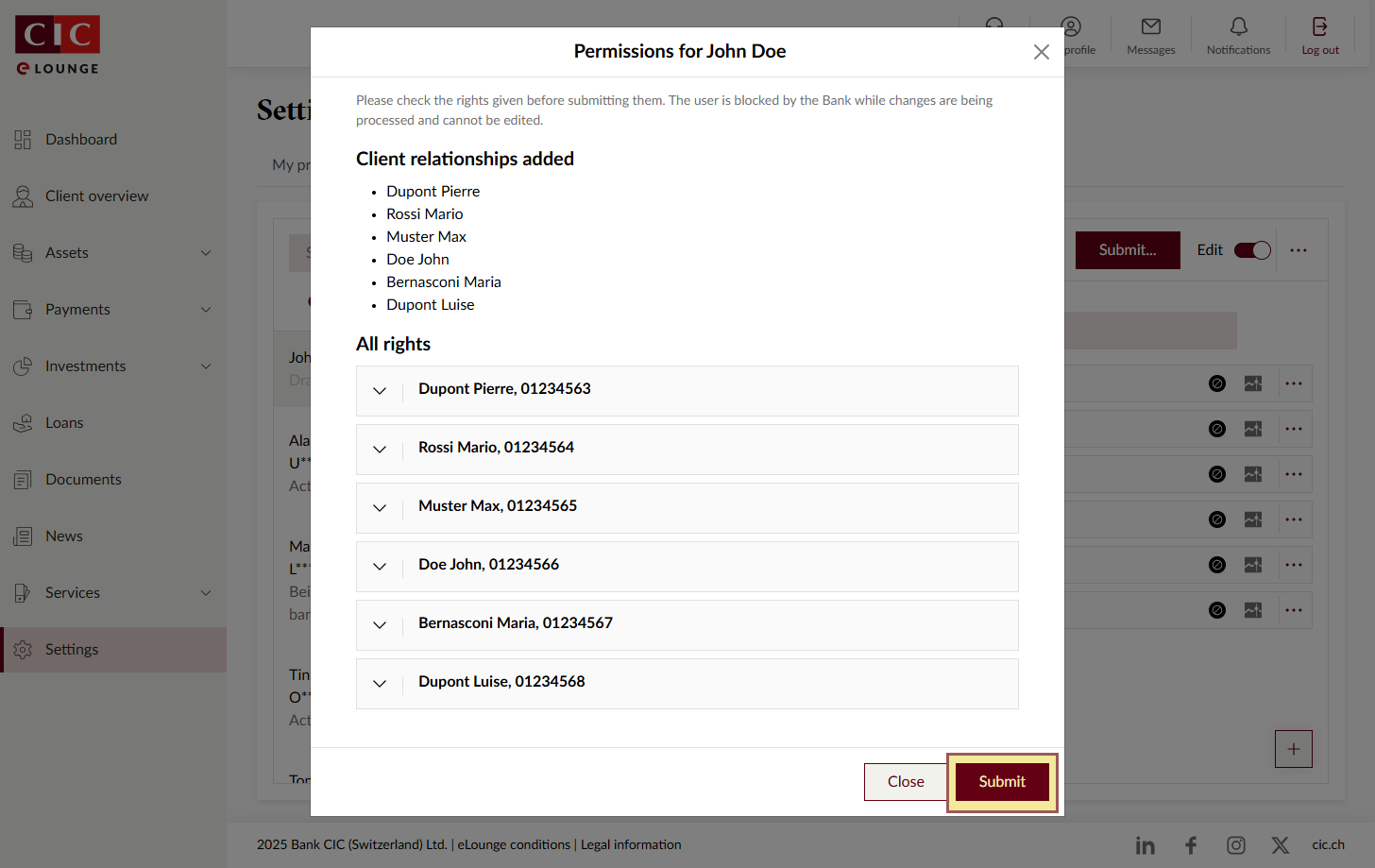
- An overview will now display the new user along with the client relationships and authorisations assigned. Click on "Submit" to continue.
- Finally, a summary will be displayed. To finish setting up the user, click on "Submit" again.
The user is now set up. The login details will be sent to the new user by post to the address provided.

-
Can a user or client relationship be deactivated or deleted?
Deactivating users:
To deactivate a user, proceed as follows:- Select the desired user and click on "Edit".
- Open the menu (⋮) and select "Deactivate user".
- Submit the changes.
After a few minutes, the user will be deactivated and no longer have access to the client relationships concerned.
Deactivating access to individual client relationships:
Alternatively, you can just deactivate access to certain client relationships:- Open the menu (⋮) next to the relevant client relationship.
- Select "Deactivate".
- Submit the changes.
After a few minutes, the user will no longer have access to the client relationship concerned.
Deleting users:
To remove a user entirely from eLounge:- Select the desired user and click on "Edit".
- Open the menu (⋮) and select "Delete user".
- Submit the changes.
The user will be deleted and no longer be able to log in to eLounge.
-
How do I give a user access to more client relationships?
- Select the user whose access rights you wish to change and click on "Edit".
- Open the menu (⋮) and select "Add client relationships".
- Add the desired client relationships and assign the relevant rights.
- Click on "Submit" to save the changes.
You can then review the rights assigned in detail in the following window. If everything is correct, confirm the changes by clicking on "Submit". The new access rights will become active within a few minutes.
-
How do I reactivate a user or client relationship?
Reactivating a user or client relationship:
- To reactivate a user who has been deactivated, select "Activate user" from the menu and submit the changes.
- Deactivated client relationships can also be reactivated at the level of the individual relationship via "Activate" in the menu.
FAQs about settings and services
-
How do I set the logout time after inactivity in eLounge?
To set the logout time after inactivity in eLounge, proceed as follows:
- Click on “Settings”
- Under “Security: automatic logout”, select the time limit that suits you best (15 minutes / 30 minutes / 45 minutes or 60 minutes)
- Click on “Save”
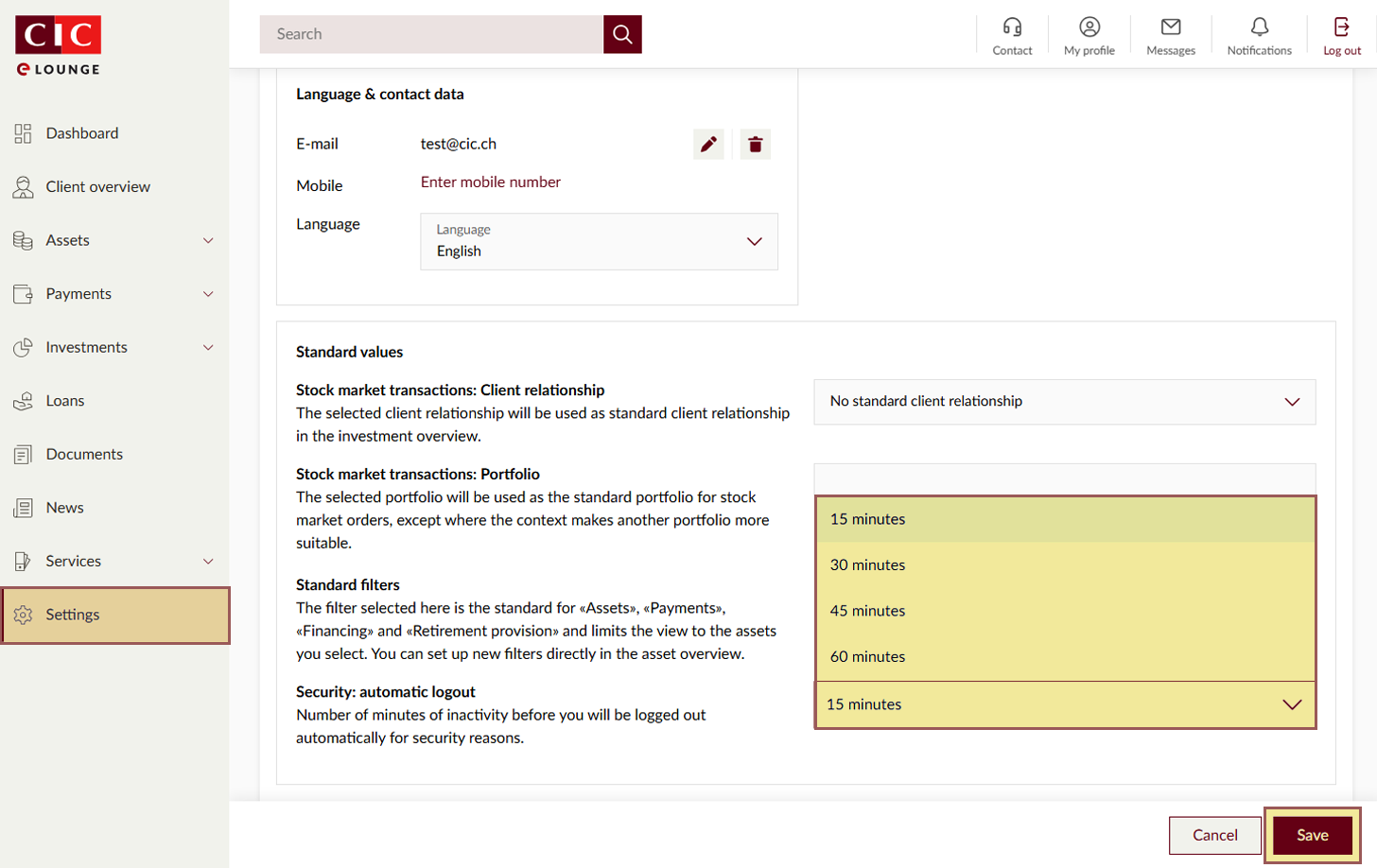
The maximum time is 60 minutes. The default setting is 15 minutes, i.e. after 15 minutes of inactivity in eLounge, you will be logged out automatically for security reasons.
-
How do I export an Excel file of a portfolio?
• Select the desired portfolio
• Open the menu (⋮) and select “Export portfolio (Excel)”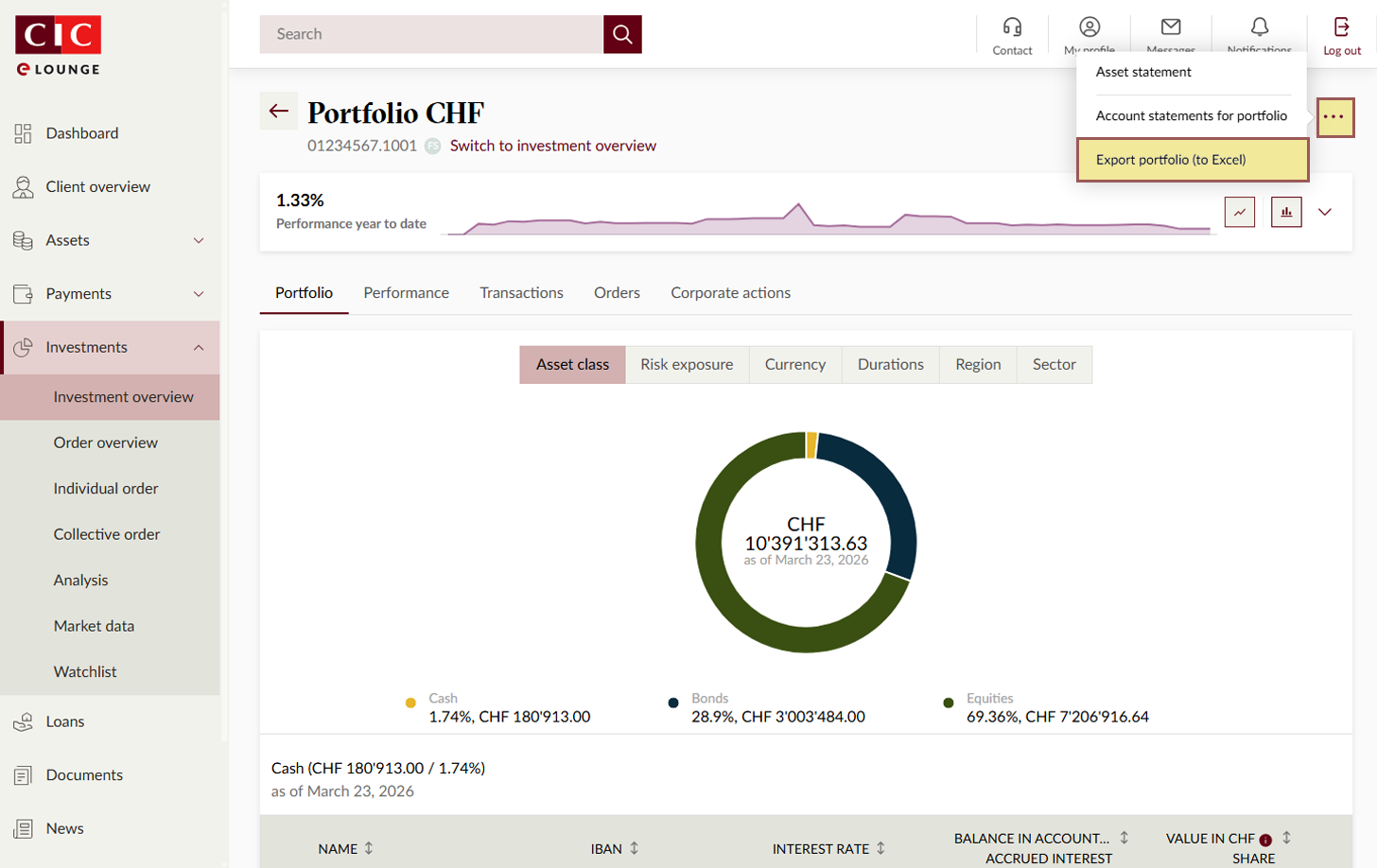
- Alternatively, open the menu (⋮) in the “Investment overview” on the desired portfolio and select “Export portfolio (Excel)”.
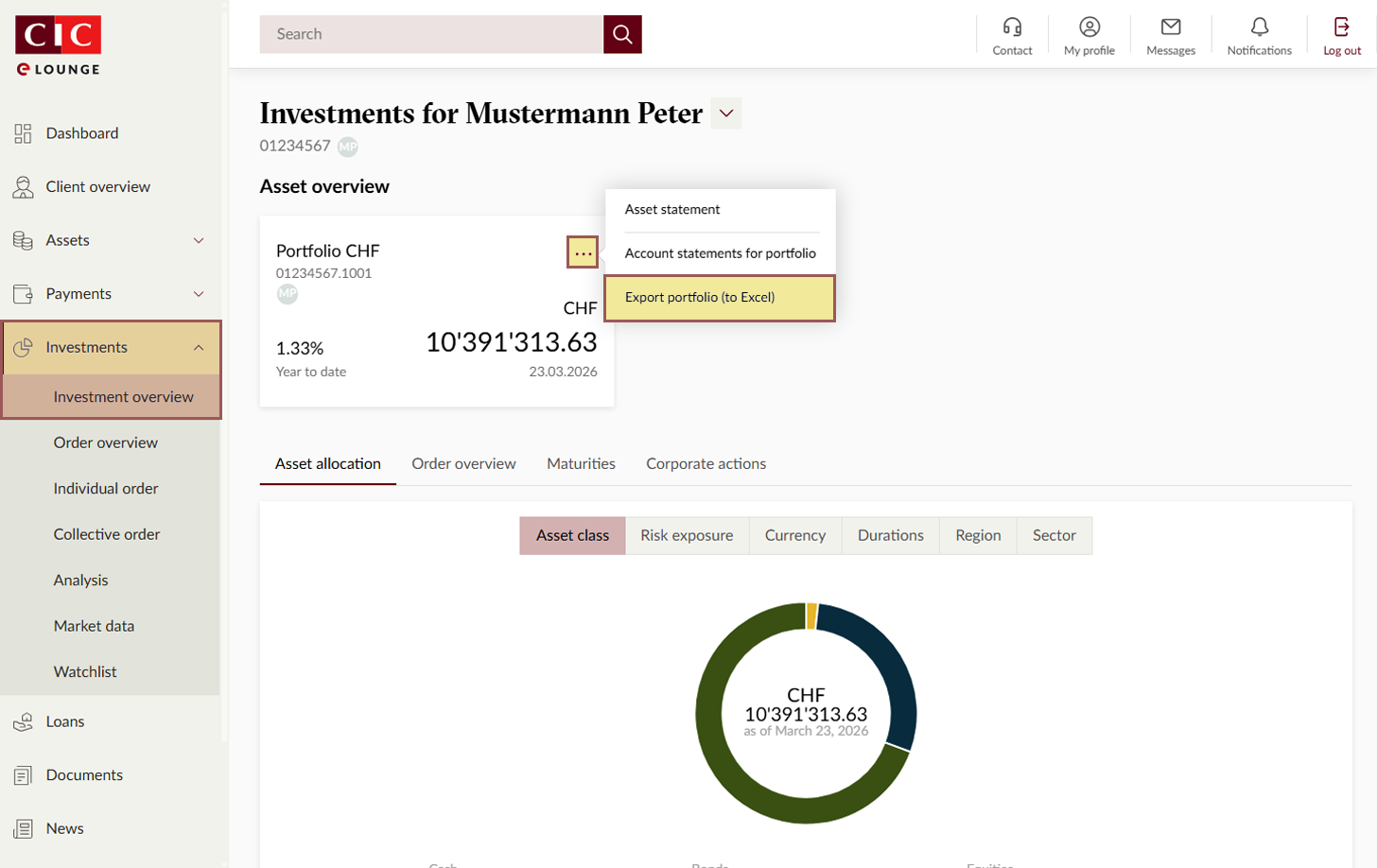
- The Excel file is available in the downloads and can now be opened and saved.
-
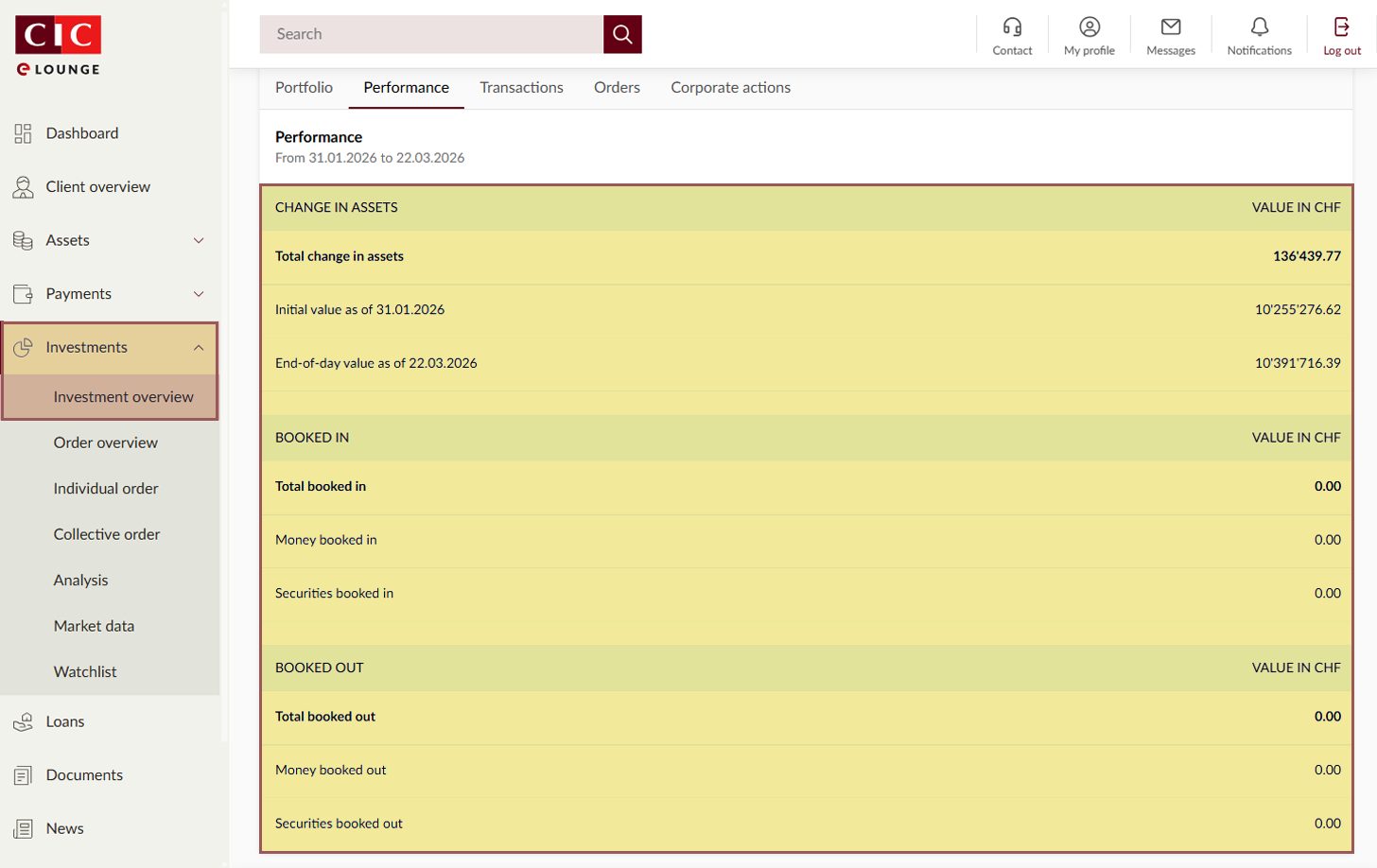
What is shown in the new performance view?
In the performance assessment of a portfolio, the bottom part now shows additional values such as incomings / outgoings and security transfers.